

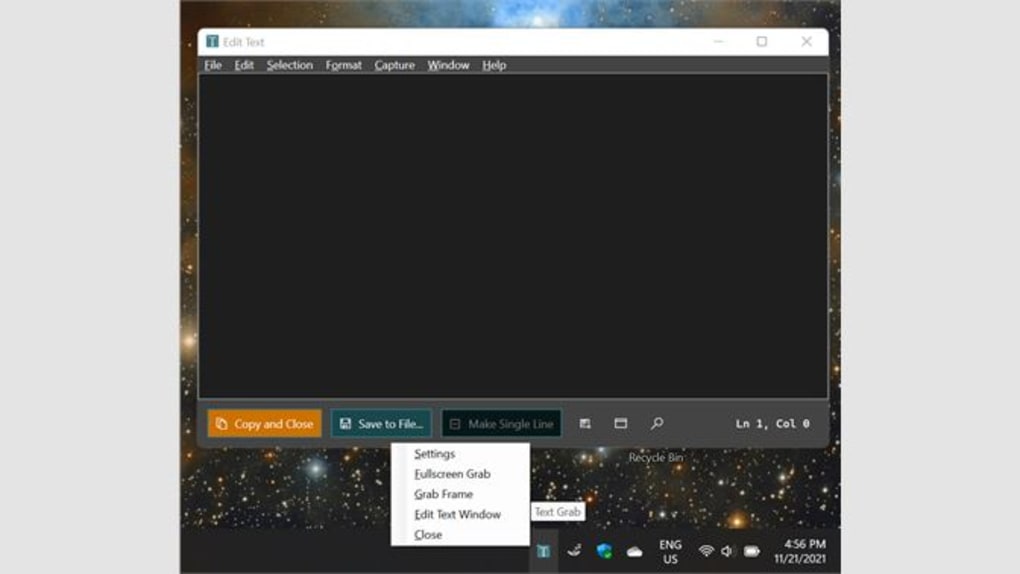
Description
Download Text Grab – Free OCR Tool for Windows & Mac to Extract Text from Images
Text Grab is a lightweight, open-source optical character recognition (OCR) software designed to make text extraction from images effortless. Whether you're working with screenshots, scanned documents, product labels, or even handwritten notes, Text Grab delivers fast, accurate results with minimal user interaction. Unlike complex OCR tools that require settings, tutorials, and learning curves, Text Grab operates on a simple principle: select text, and it copies automatically to your clipboard. This makes it ideal for students, professionals, researchers, and anyone who frequently needs to extract text from non-editable sources. The app is available for Windows 10, Mac, Android, and iOS, ensuring cross-device accessibility. With no ads, no registration, and no hidden costs, it’s a truly free and secure solution. The latest version includes improved recognition accuracy, faster processing, and better integration with system clipboard. Whether you're translating foreign text, saving notes from a whiteboard, or extracting data from a PDF, Text Grab streamlines the workflow with precision and speed.
Key Features of Text Grab – What Makes It Stand Out
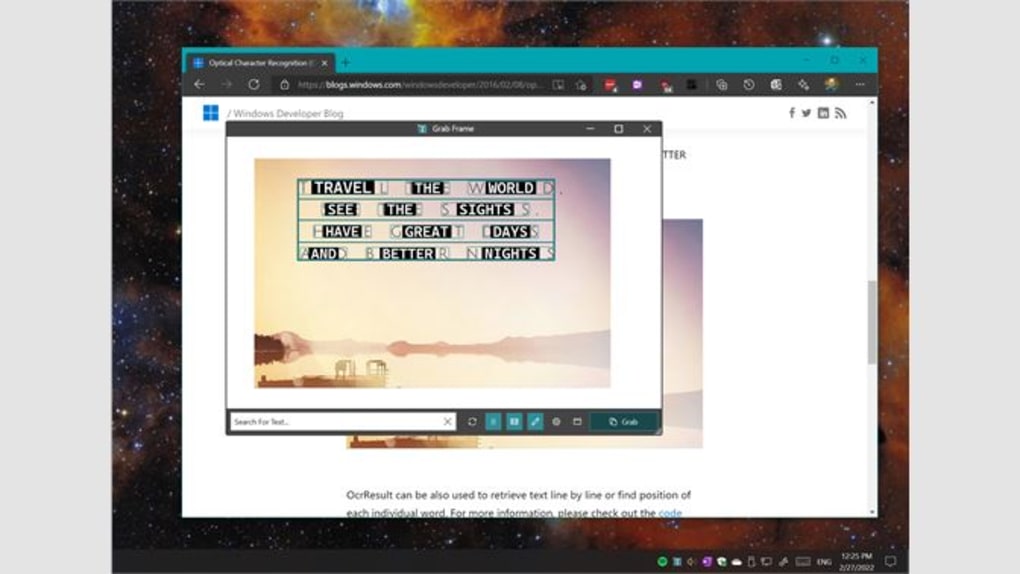
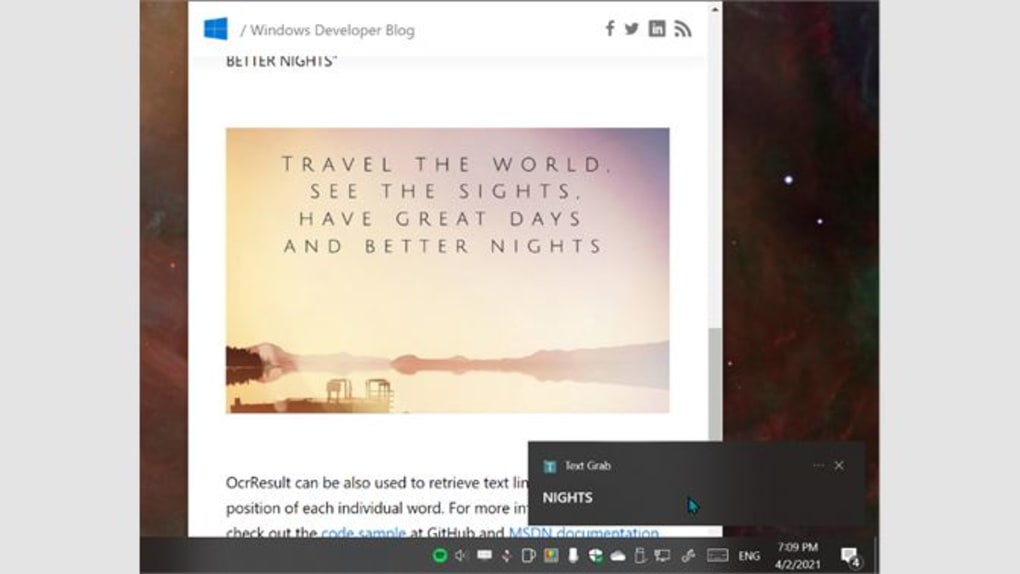
Text Grab stands out in the crowded field of OCR tools due to its minimalist design and powerful functionality. One of its most impressive features is the zero-configuration setup. Unlike other OCR software that demands users to adjust settings, select languages, or configure output formats, Text Grab starts working immediately after installation. Simply launch the app, and the screen dims with a pencil-like cursor that guides you to select any text on your screen. The tool instantly recognizes and copies the selected text to your clipboard, ready for pasting anywhere.
Another standout feature is its multi-language support. Text Grab can recognize and extract text in over 100 languages, including Chinese, Arabic, Japanese, Russian, and Spanish. This makes it a valuable tool for international students, travelers, and remote workers. The built-in translation engine allows you to instantly translate the extracted text into your preferred language, eliminating the need for switching between apps. Whether you're reading a foreign menu or analyzing a research paper, you can extract and translate text in seconds.
Text Grab also includes a built-in editor that lets you review, edit, and merge multiple text snippets. You can save your captured text as a document, export it to PDF, or share it directly to Gmail, Facebook, WhatsApp, or other apps. The auto-copy functionality ensures that every recognized text is instantly available in your clipboard, reducing manual steps. Additionally, the app supports batch extraction from multiple images and screenshots, making it ideal for data entry tasks. With regular updates and a strong open-source community, Text Grab continues to evolve with user feedback, ensuring long-term reliability and performance.
- One-click text extraction from images, screenshots, and PDFs
- Support for over 100 languages with real-time translation
- Auto-copy recognized text to clipboard without manual intervention
- Integrated editor for reviewing, editing, and merging text
- Export to PDF, share via email, social media, or cloud apps
- Lightweight, no ads, no registration, completely free
- Available for Windows 10, Mac, Android, and iOS
How to Install and Use Text Grab on Your Device
Installing Text Grab is quick and straightforward, regardless of your operating system. For Windows 10 users, the easiest way is to download it directly from the Microsoft Store. Open the Store app, search for “Text Grab,” and click “Get” or “Install.” The app will download and install automatically. Alternatively, you can visit the official GitHub repository to download the portable version, which doesn’t require installation and can be run directly from a USB drive.
On Mac, Text Grab is available through the Mac App Store. Search for the app, click “Get,” and sign in with your Apple ID. Once installed, you can launch it from the Applications folder or pin it to your Dock for quick access. For Android and iOS users, the app is available on Google Play and the Apple App Store, respectively. Simply search for “Text Grab,” download, and open it.
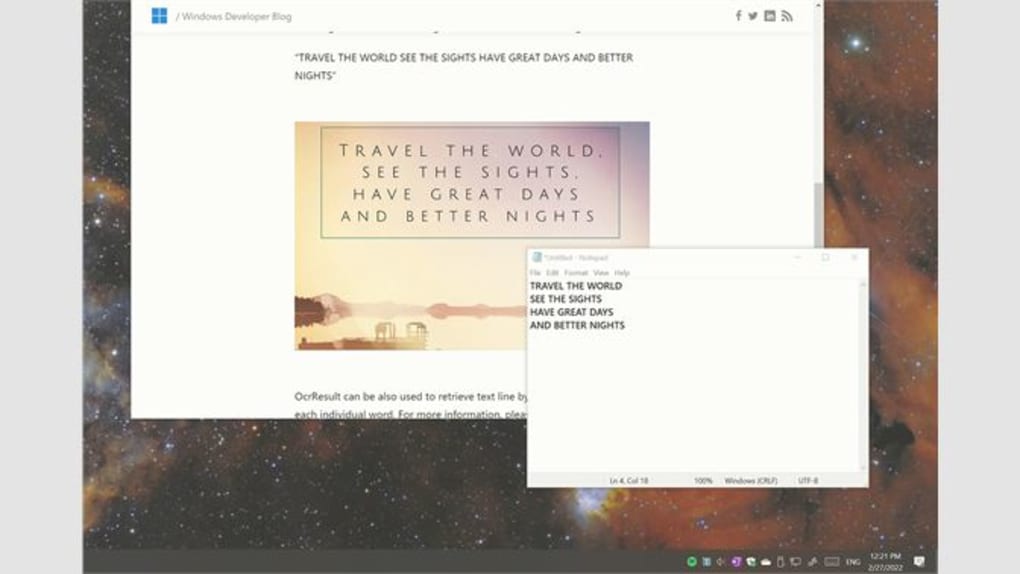
Using Text Grab is incredibly intuitive. After launching the app, the screen dims slightly, and a pencil cursor appears. Move it over any text you want to extract—be it on a webpage, a scanned document, or a photo—and click. The recognized text is instantly copied to your clipboard. You can then paste it into any application—Word, Notepad, Google Docs, or even a messaging app. If you need to review or edit the text, open the built-in editor by clicking the “Edit” button in the app menu. You can also save the text as a file or share it directly via email or social media.
For advanced users, Text Grab supports keyboard shortcuts (e.g., Ctrl+Shift+T on Windows) to activate the tool without clicking. This enhances productivity, especially when extracting multiple pieces of text in quick succession. The app runs in the background and doesn’t consume significant system resources, making it suitable for older devices.
Compatibility & System Requirements
Text Grab is designed to be accessible across a wide range of devices and operating systems. It supports Windows 10 and later, including Windows 11, with full compatibility for both 32-bit and 64-bit systems. On macOS, it works seamlessly on Big Sur, Monterey, Ventura, and Sonoma, ensuring smooth performance on both Intel and Apple Silicon Macs.
For mobile users, Text Grab is available on Android 8.0 (Oreo) and later, as well as iOS 12 and above. This cross-platform availability means you can extract text from a photo on your phone and paste it into a document on your laptop—without losing context or quality.
System requirements are minimal, making Text Grab ideal for older or low-end devices. It requires only 50 MB of free storage space and 2 GB of RAM. The app does not need internet access to function offline, though a connection is required for translation features and updates. Text Grab uses advanced OCR algorithms optimized for speed and accuracy, ensuring fast processing even on high-resolution images.
Security is a top priority. As an open-source tool, the code is publicly available for review, reducing the risk of malware or data leaks. All text processing happens locally on your device—no data is sent to external servers unless you choose to use cloud sharing or translation services. This makes Text Grab a secure choice for handling sensitive documents, personal notes, or confidential information.
Pros and Cons of Using Text Grab
Pros
- Extremely user-friendly – No interface, no settings, just select and copy.
- Free and open-source – No hidden costs, no ads, no registration.
- Fast and accurate OCR – Recognizes text in seconds with high precision.
- Multi-language support – Extract and translate text in over 100 languages.
- Offline functionality – Works without internet for basic text extraction.
- Cross-platform – Available on Windows, Mac, Android, and iOS.
- Lightweight – Minimal system resource usage.
Cons
- No batch processing – You must select text one at a time (though this may be improved in future updates).
- Basic editing tools – The built-in editor is functional but not advanced.
- Translation requires internet – Offline translation is not available.
- Limited customization – No options to adjust OCR sensitivity or output format.
- Mobile version lacks some features – Some advanced functions are only available on desktop.
Frequently Asked Questions (FAQ)
Is Text Grab completely free to use?
Yes, Text Grab is 100% free and open-source. There are no ads, no in-app purchases, and no subscription fees. You can download, use, and share it without any restrictions.
Can I use Text Grab without an internet connection?
Yes, basic text extraction works offline. However, translation and cloud sharing features require an internet connection.
Does Text Grab support handwritten text?
Text Grab performs best with printed text. Handwritten text recognition is limited and may result in lower accuracy.
Can I extract text from PDFs using Text Grab?
Yes, you can extract text from PDFs by opening them in a viewer and selecting the text directly with the Text Grab tool.
How often is Text Grab updated?
The development team releases regular updates to improve OCR accuracy, fix bugs, and add new features. Check the official GitHub page for the latest version.
Final Verdict: Why You Should Download Text Grab Today
Text Grab is a game-changer for anyone who frequently needs to extract text from images, screenshots, or documents. Its simplicity, speed, and reliability make it a top choice among free OCR tools. Whether you're a student copying notes from a lecture slide, a professional extracting data from a scanned contract, or a traveler translating street signs, Text Grab delivers exactly what you need—without the clutter.
With cross-platform support, strong security, and a growing feature set, it’s a tool that grows with your needs. The fact that it’s open-source adds transparency and trust, while the zero-configuration design ensures that even first-time users can get started in seconds.
Ready to simplify your workflow? Download Text Grab today and experience the future of text extraction—fast, free, and effortless.
Guides & Tutorials for Text Grab
How to install Text Grab
- Click the Preview / Download button above.
- Once redirected, accept the terms and click Install.
- Wait for the Text Grab download to finish on your device.
How to use Text Grab
This software is primarily used for its core features described above. Open the app after installation to explore its capabilities.
User Reviews for Text Grab 0
No reviews found





